> ## Documentation Index
> Fetch the complete documentation index at: https://knowledge-base.faucetcrypto.com/llms.txt
> Use this file to discover all available pages before exploring further.
# Password Management
# Reset Password
You can reset your Account's password in two (2) ways:
* On the **login page**, by clicking on "***Forgot Password***" and following the instructions.
* Changing it via your Profile settings.
***
# Change Password via Profile Settings
To change your password via profile settings, please follow the instructions below:
**Login** to your **Account**
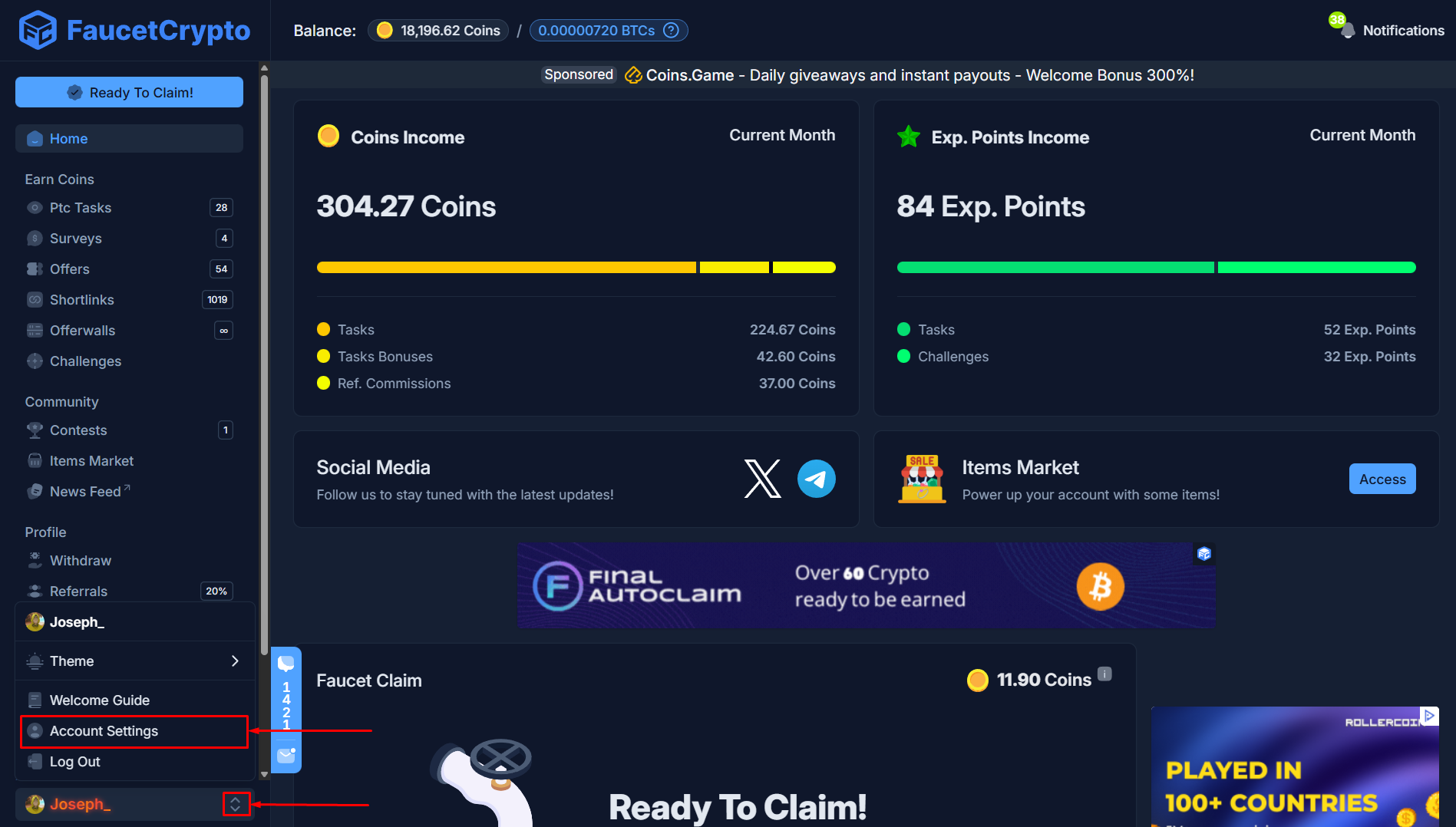
Click on the icon beside your username at the bottom of the side menu and select "***Account Settings***" to access your Profile page
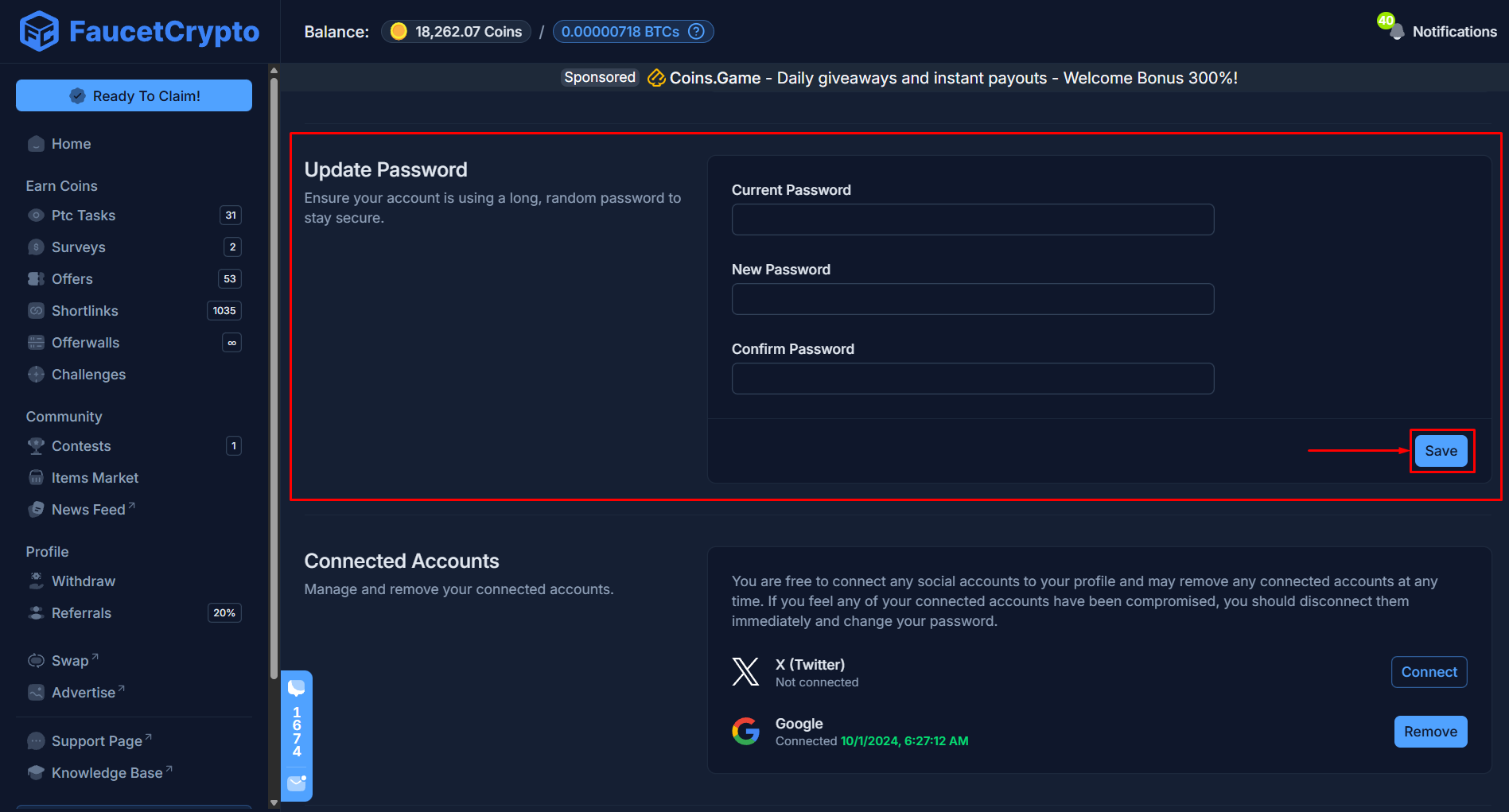
 At your **Profile page**, scroll down till you find the "***Update Password***" box. Fill in the respective areas and click "***Save***"
 **Tip:** *Make sure to always use a strong/unique password that is not reused on any other websites or services*