> ## Documentation Index
> Fetch the complete documentation index at: https://knowledge-base.faucetcrypto.com/llms.txt
> Use this file to discover all available pages before exploring further.
# Track Withdrawal
# My withdrawal is completed but I can't find it
**Faucet Crypto** sends out withdrawals directly through the blockchain — with **transaction hash** (***TxID***) **generated** when the withdrawal process is completed. This method ensures **everything is transparent**, meaning anyone with the transaction hash/ID can search or view the withdrawal transaction in a block explorer and see the confirmation status, recipient address, date & time of the transaction alongside many other details.
If you made a withdrawal, which is now labelled "*Completed*" in your withdrawal history, but you cannot seem to find nor see the coins reflect in your wallet app, here's a series of steps you should follow to accurately track the coins:
First, ensure you had used a **correct/valid address for the respective blockchain network** prior to initially clicking "*Submit withdraw*" when withdrawing (see [this guide](https://knowledge-base.faucetcrypto.com/withdrawals/withdraw-funds) about "*How to withdraw from Faucet Crypto*"). If *YES*, proceed to #2 below.
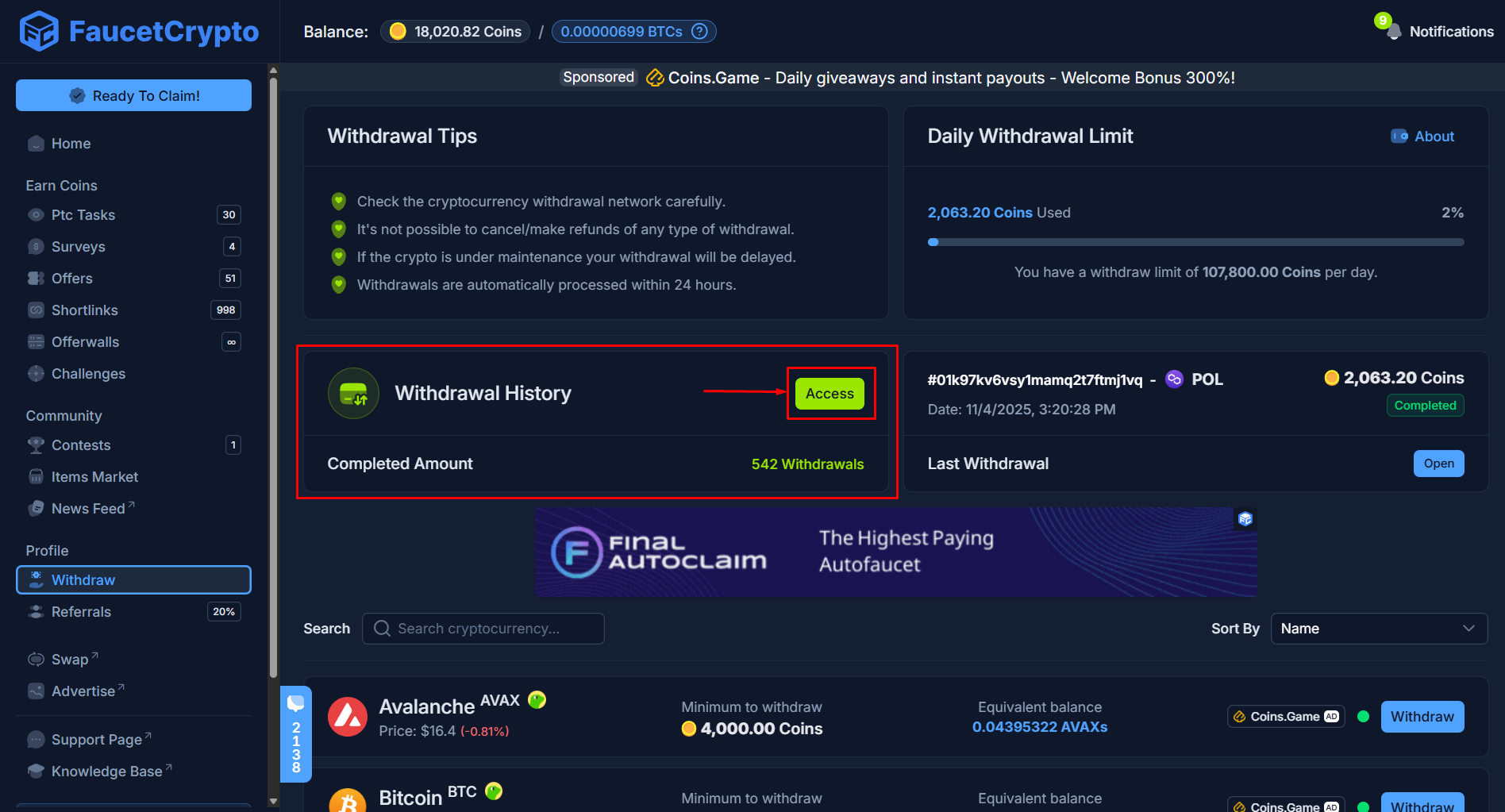
Scroll down the left-side menu to the **Profile** section, and click on the **Withdraw** option/page to open it up, then click on "*Access*" where it says "**Withdrawal History**" to show your full Withdrawal History
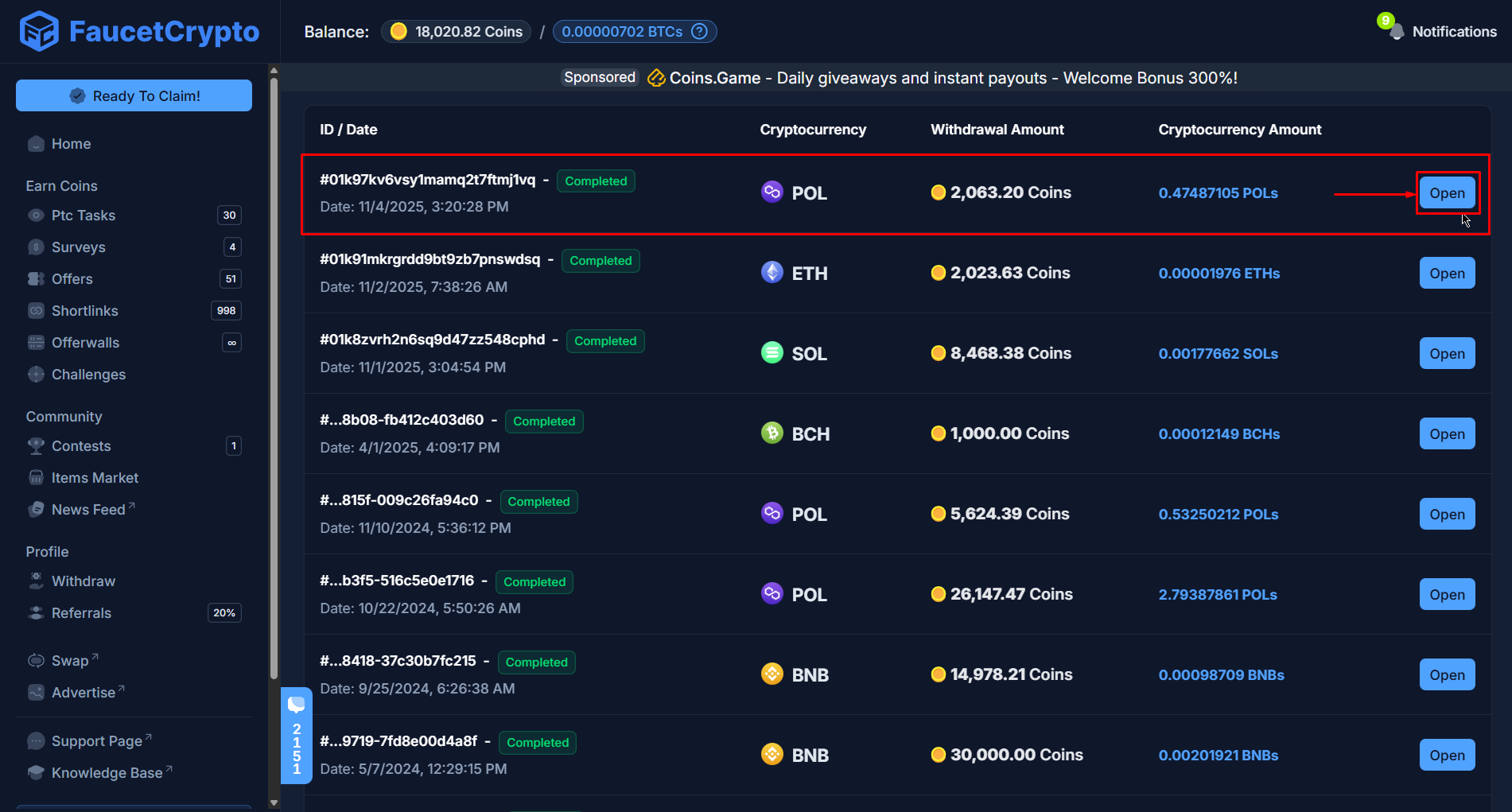
 Once your full Withdrawal History shows, **click on "Open" for the specific withdrawal you have an issue** with to bring up more details about it ie. Transaction flow from "*Submission*", "*Processing*" to "*Completed*" (including date & time stamps); Amount of Coins withdrawn and the equivalent crypto amount to be received; Your withdrawal address; and most importantly, **the transaction hash/ID** (abbreviated as **TxID**)
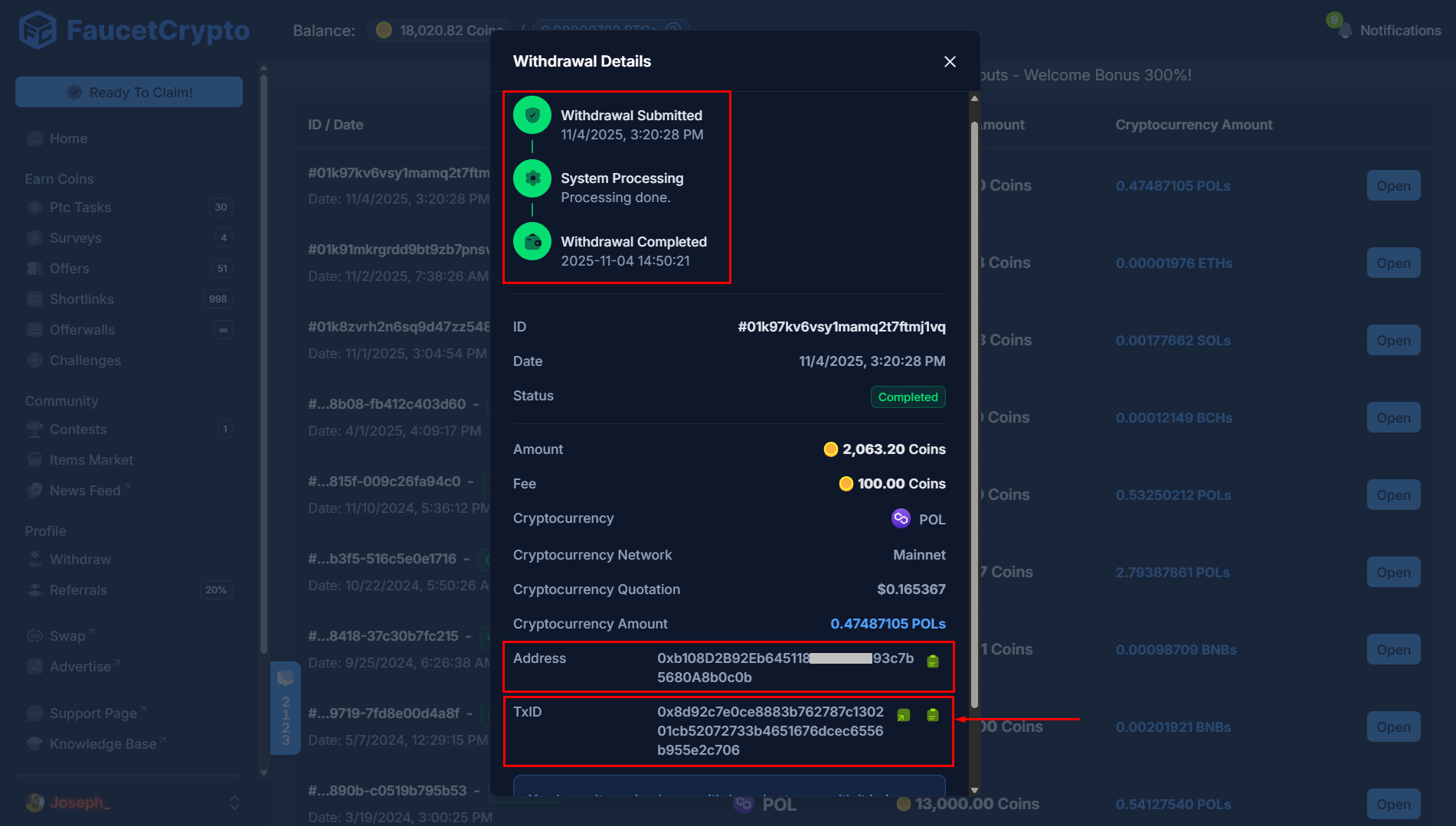 **The transaction hash/ID (TxID) is the single unique identifier to verify that your withdrawal was sent**, and it is what you will use in tracking your transaction on a **Block Explorer** to confirm with 100% certainty
*A Block Explorer is simply a web application that lets you 'peek inside the blockchain', searching transactions, addresses, and even Live activity. Each blockchain network has at least one block explorer. For example, mempool.space is a versatile block explorer for Bitcoin network; polygonscan.com is a block explorer for Polygon network; and in some cases, you may find a block explorer that supports multiple networks eg. blockchair.com*
That said, **at the Withdrawal Details Modal**, either click the "*copy*" icon to **copy the TxID** and manually input/paste it into a related Block Explorer for the associated crypto and search ***OR simply click the "Link" icon*** to automatically open it in it's related Block Explorer and track the transaction.
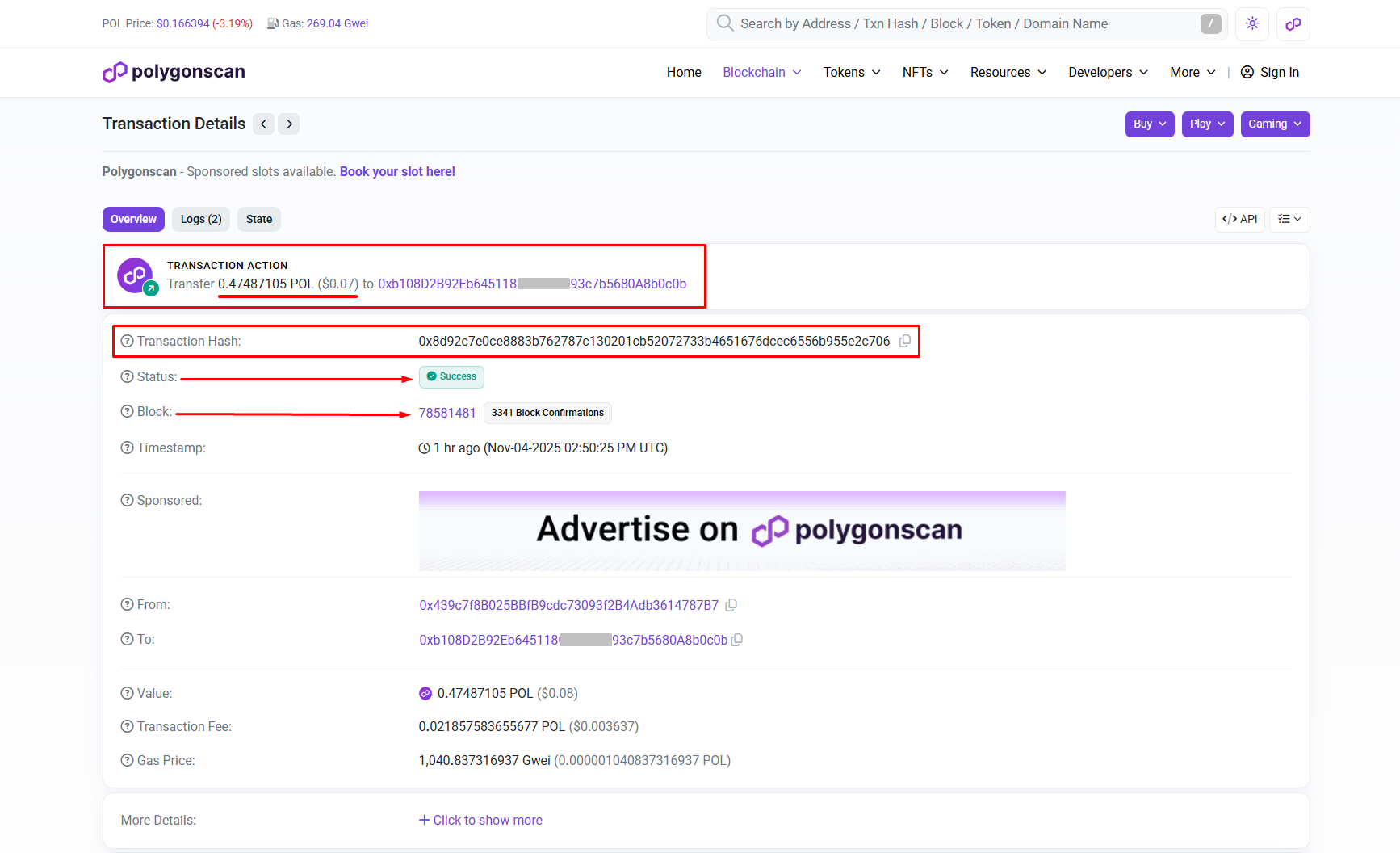
Once it opens, generally (but using this Polygon withdrawal as an example on [polygonscan](https://polygonscan.com)) pay attention to a section that says "**Status**" (and/or "**No. of Confirmations**" for some network block explorers). **Being marked as 'Success', 'Confirmed', 'Successful' or anything similar... with 1 or more No. of Confirmations is 100% verifiable assurance that the transaction was accurately sent**. You can also see your address, amount transacted and other details pertaining to the whole withdrawal.
**The transaction hash/ID (TxID) is the single unique identifier to verify that your withdrawal was sent**, and it is what you will use in tracking your transaction on a **Block Explorer** to confirm with 100% certainty
*A Block Explorer is simply a web application that lets you 'peek inside the blockchain', searching transactions, addresses, and even Live activity. Each blockchain network has at least one block explorer. For example, mempool.space is a versatile block explorer for Bitcoin network; polygonscan.com is a block explorer for Polygon network; and in some cases, you may find a block explorer that supports multiple networks eg. blockchair.com*
That said, **at the Withdrawal Details Modal**, either click the "*copy*" icon to **copy the TxID** and manually input/paste it into a related Block Explorer for the associated crypto and search ***OR simply click the "Link" icon*** to automatically open it in it's related Block Explorer and track the transaction.
Once it opens, generally (but using this Polygon withdrawal as an example on [polygonscan](https://polygonscan.com)) pay attention to a section that says "**Status**" (and/or "**No. of Confirmations**" for some network block explorers). **Being marked as 'Success', 'Confirmed', 'Successful' or anything similar... with 1 or more No. of Confirmations is 100% verifiable assurance that the transaction was accurately sent**. You can also see your address, amount transacted and other details pertaining to the whole withdrawal.
 From there onwards, **if you still cannot see the amount in your wallet app**, it may be that:
* your wallet app is not pulling up updated information from the blockchain correctly; OR
* your wallet app requires more No. of Confirmations on the blockchain before it can show the updated coins/balance (in which case you should just give it time).
In any case, if the **block explorer** shows the withdrawal status as ***Success***, ***Confirmed***, ***Successful*** or anything similar, and you need further help, **please contact your wallet's app Customer Support team with your address and TxID**, and they'll be the ones to address your concerns further.
***
### ...but, mine says "Invalid TXN" or "Transaction not found" in a block explorer! What should I do?
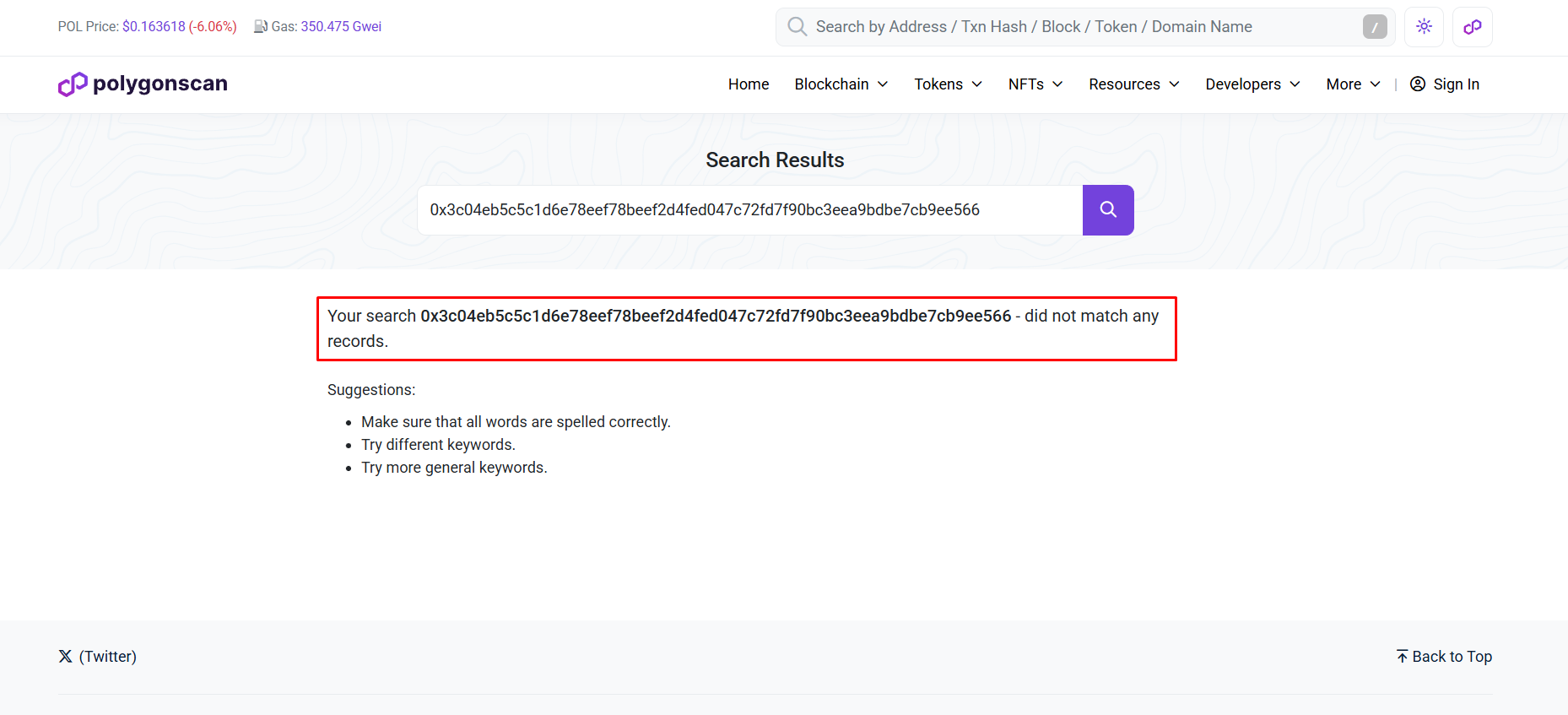
Hey, don't panic if you try tracking the transaction on a block explorer as outlined through the steps above, but you end up with a screen on the block explorer saying "***Invalid Txn***" or "***Transaction not found***" or something similar like in the image below:
From there onwards, **if you still cannot see the amount in your wallet app**, it may be that:
* your wallet app is not pulling up updated information from the blockchain correctly; OR
* your wallet app requires more No. of Confirmations on the blockchain before it can show the updated coins/balance (in which case you should just give it time).
In any case, if the **block explorer** shows the withdrawal status as ***Success***, ***Confirmed***, ***Successful*** or anything similar, and you need further help, **please contact your wallet's app Customer Support team with your address and TxID**, and they'll be the ones to address your concerns further.
***
### ...but, mine says "Invalid TXN" or "Transaction not found" in a block explorer! What should I do?
Hey, don't panic if you try tracking the transaction on a block explorer as outlined through the steps above, but you end up with a screen on the block explorer saying "***Invalid Txn***" or "***Transaction not found***" or something similar like in the image below:
 In this case, please open a ticket at our [Support Center](https://faucetcrypto.com/support) and provide the necessary details in the support form provided, our team will look into it conclusively to ensure there are no unknown issues and give you timely feedback directly via your ticket.
***
In this case, please open a ticket at our [Support Center](https://faucetcrypto.com/support) and provide the necessary details in the support form provided, our team will look into it conclusively to ensure there are no unknown issues and give you timely feedback directly via your ticket.
***